Cataloging a Video Game Collection
This use case walks through building a video game collection in MDCollections from scratch. We’ll cover how the properties were chosen, how barcode scanning is configured to auto-fill game details, how stacks and title templates keep things organized, and how all the settings come together to make cataloging fast and browsing easy.
If you’re new to MDCollections, start with these how-to guides first — they cover the fundamentals that this use case builds on:
- Getting Started — Your First Collection — creating a collection, setting up folders, and adding your first item.
- Barcode Scanning and Product Lookup — enabling UPC/ISBN/EAN scanning and mapping product data to your properties.
- Setting Up Storage Locations and QR Labels — tracking where items are physically stored.
- Customizing How You View Your Collection — view modes, stacks, sorting, and search.
With those covered, let’s look at how a video game collection comes together.
The Template File
Every collection starts with a template file that defines the properties and default values for new items. Here’s the template for this video game collection (download template file then unzip the downloaded file)):
---
name: Scott Pilgrim Vs the World the Game
edition:
  - Complete Edition
platform: Playstation 4
publisher: Limited Run Games
description: "Product Details Scott Pilgrim Vs. The World: The Game is on a region-free physical disc for the Playstation 4. The Scott Pilgrim Vs. The World: The Game Classic Edition includes: Scott Pilgrim Vs. The World: The Game Complete Edition physical game for the Sony PlayStation 4 Reversible cover sheet Deluxe plastic clamshell case with reversible coversheet Sticker sheet featuring art from the game Physical soundtrack CD featuring music by Anamanaguchi. The Clash at Demonhead commemorative concert ticket Overworld map Genre: Action  Fighting # of Players: 1-4 Players Supported Languages: English  French  German  Italian  Spanish About the Game Complete Edition includes the remaster of Scott Pilgrim vs. The World: The Game and its original DLCs: the Knives Chau and Wallace Wells Add-On Packs. Rediscover the beloved 2D arcade-style beat  em up inspired by the iconic comic book series and movie  Scott Pilgrim vs. The World. Play as your favorite characters ? Scott Pilgrim  Ramona Flowers  Knives Chau  Stephen Stills"
product_image: Scott_Pilgrim_Vs_the_World_the_Game_Complete_Classic_Ed_(Limited_Run_Games)_(PS4_Playstation_4)_-_product_image.jpg
notes:
published_year:
upc: "819976025814"
date: 2026-02-18
title_template: "{name} ({published_year}) [{platform}]"
---
A few things to note:
dateuses a Templater expression (<% tp.date.now("YYYY-MM-DD") %>) to auto-fill today’s date when a new item is created. This works if you’re using Obsidian with the Templater plugin — MDCollections passes it through as-is.title_templatedefines how item titles are generated:{name} ({edition}) [{platform}]. So a game might be titled “The Legend of Zelda (Collector’s Edition) [Nintendo Switch]”.
The template body also includes dynamic Markdown that conditionally renders the product image and notes sections using Dataview’s choice() function:
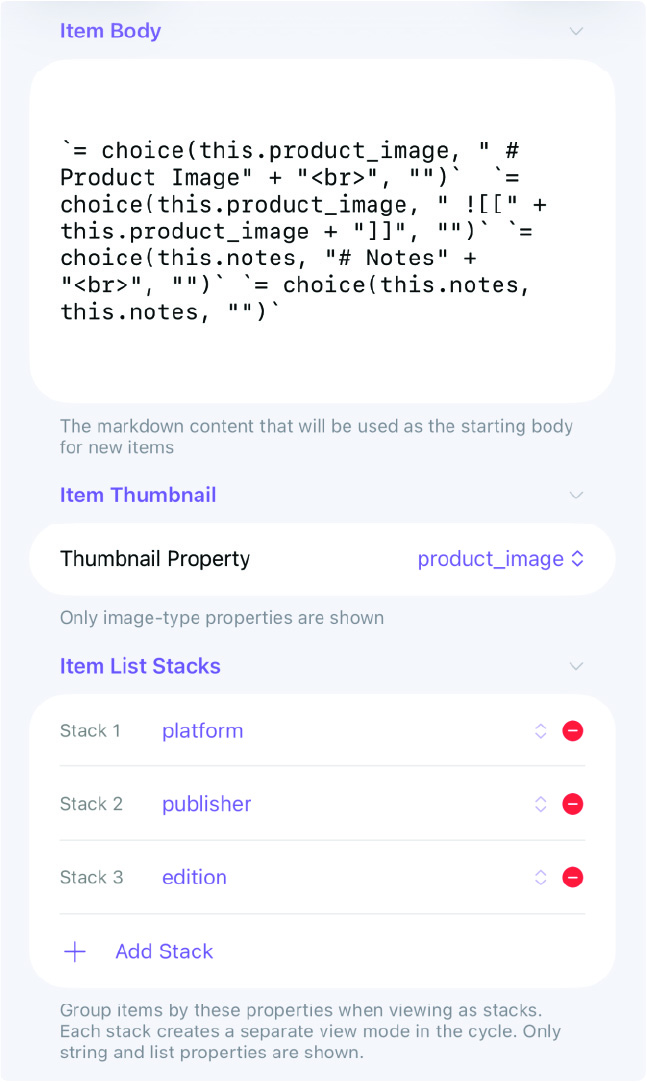
`= choice(this.product_image, " # Product Image" + "<br>", "")`
`= choice(this.product_image, " ![[" + this.product_image + "]]", "")`
`= choice(this.notes, "# Notes" + "<br>", "")`
`= choice(this.notes, this.notes, "")`
This means the Product Image and Notes headings only appear in the body when those fields actually have values — keeping item pages clean when data is sparse.
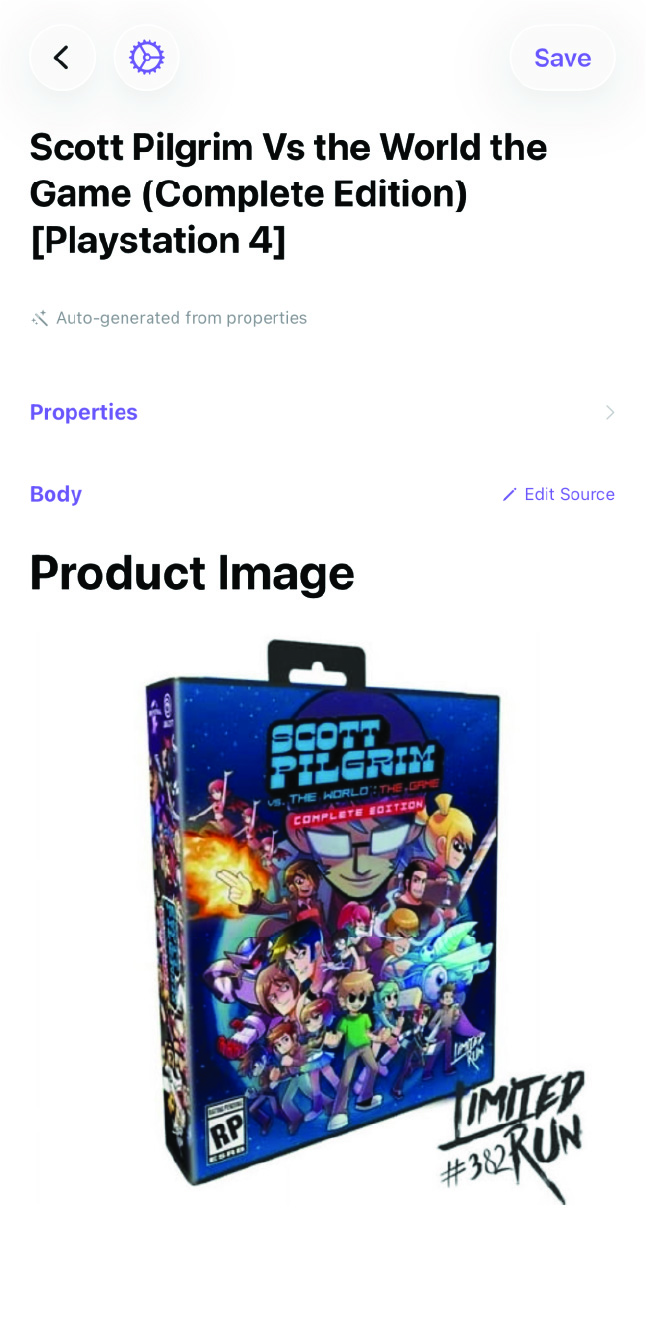
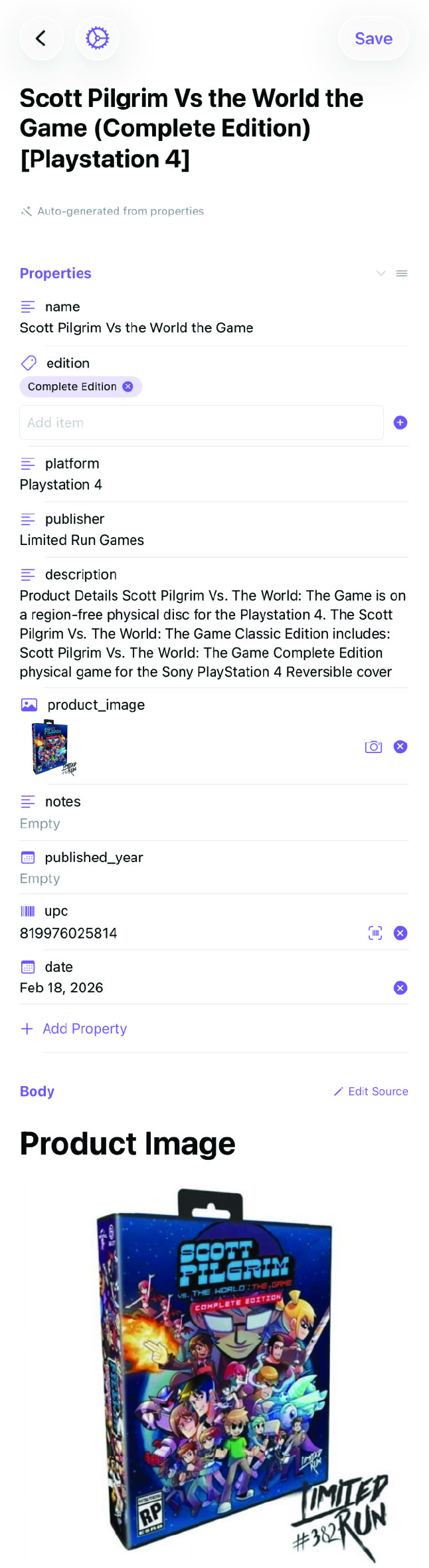
Here’s an example of what a completed collection item looks like as a Markdown file (download example item then unzip the downloaded file)):
Defining the Properties
With the template in place, the next step is configuring each property’s type and behavior in Collection Settings. Here’s how the properties are set up for this collection:
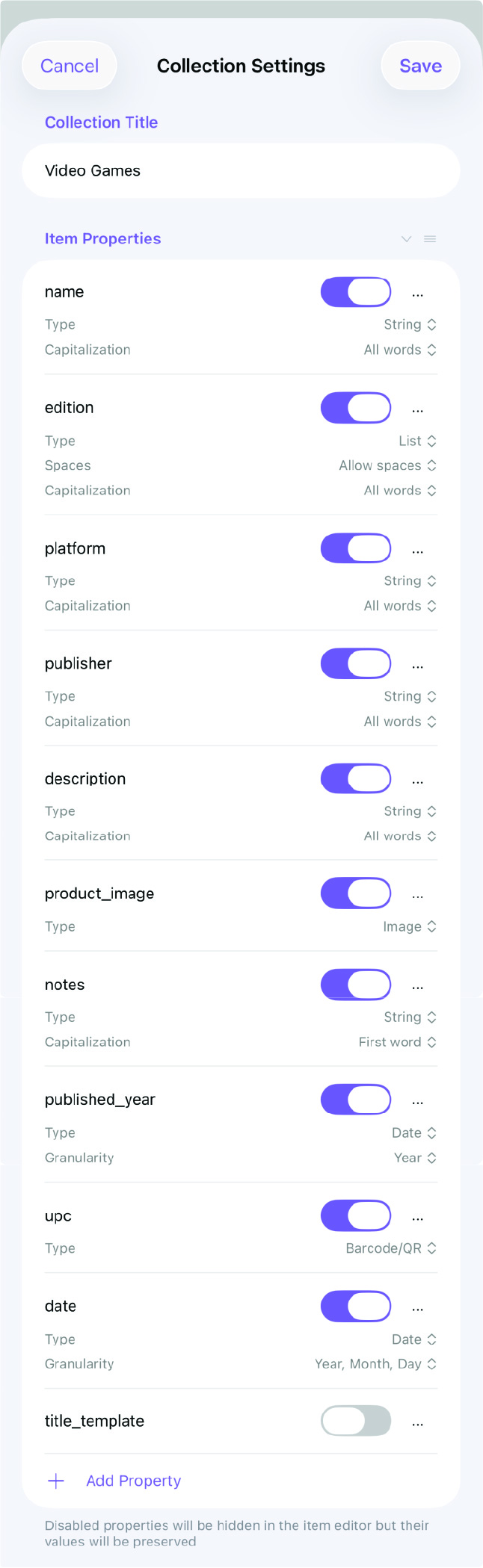
Let’s walk through the key choices:
| Property | Type | Notes |
|---|---|---|
| name | String | The game’s title. Capitalization set to “All words.” |
| edition | List | Editions like “Standard,” “Collector’s,” “Game of the Year.” Set as a List type so you can reuse values across items. Spaces are allowed, and capitalization is “All words.” |
| platform | String | The console or platform — “Nintendo Switch,” “PS5,” “Xbox Series X.” Capitalization is “All words.” |
| publisher | String | The game’s publisher. |
| description | String | A text description of the game, typically auto-filled from the product API. |
| product_image | Image | The product/box art image. This is also set as the thumbnail property (more on that below). |
| notes | String | Personal notes about the item — condition, where you bought it, any other details. Capitalization is “First word” to keep notes natural. |
| published_year | Date (Year) | The release year. Granularity is set to “Year” so you only need to enter the year, not a full date. |
| upc | Barcode/QR | The UPC barcode value. Stored as a Barcode/QR type so it can be scanned and displayed as a barcode. |
| date | Date (Year, Month, Day) | The date the item was added to the collection. Full date granularity. |
| title_template | (Disabled) | This property holds the title template string. It’s toggled off so it doesn’t appear in the item editor, but its value is preserved and used by the title generation system. |
Notice that title_template is disabled (toggled off). Disabled properties are hidden in the item editor but their values are still preserved in the Markdown file. This is a useful pattern for properties that drive app behavior but don’t need to be edited on every item.
Item Body Template
The Item Body section in Collection Settings defines the Markdown content that gets copied into every new item’s body. For this collection, the body template uses Dataview’s choice() function to conditionally show the product image and notes:
This means new items automatically get a body that renders the product image when one exists, and shows a Notes section when notes have been written. You don’t need to set this up manually for each item — the template handles it.
Item Thumbnail
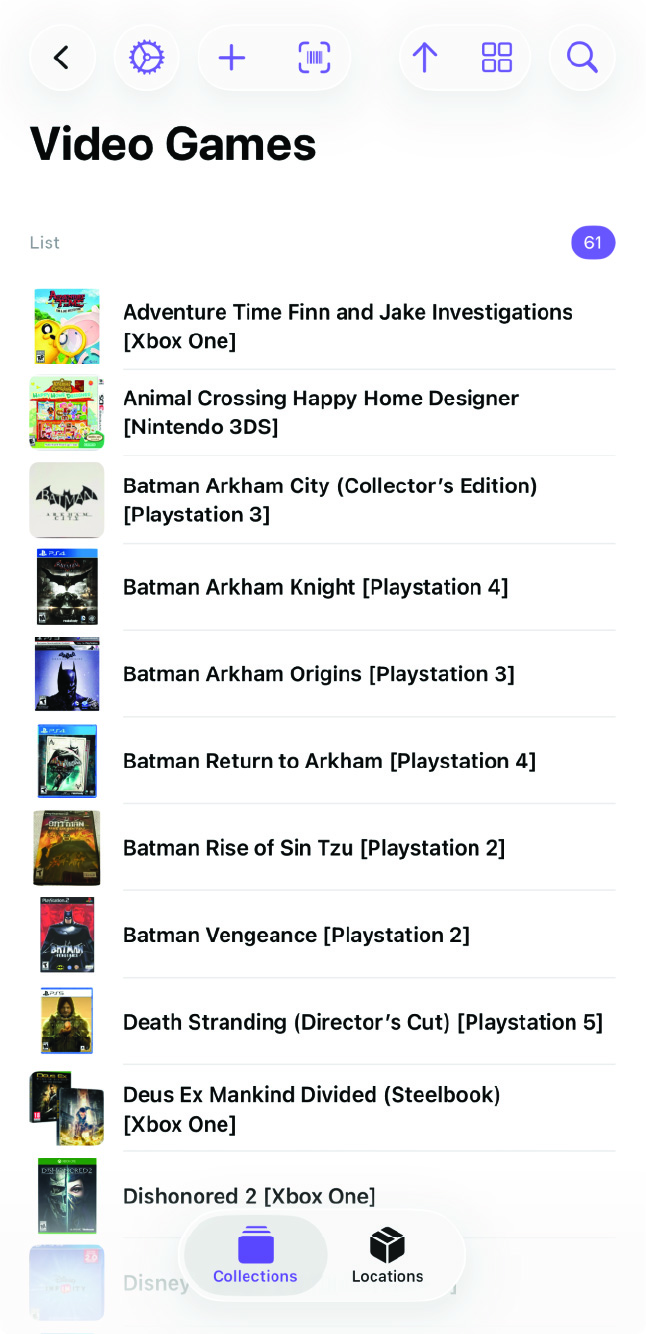
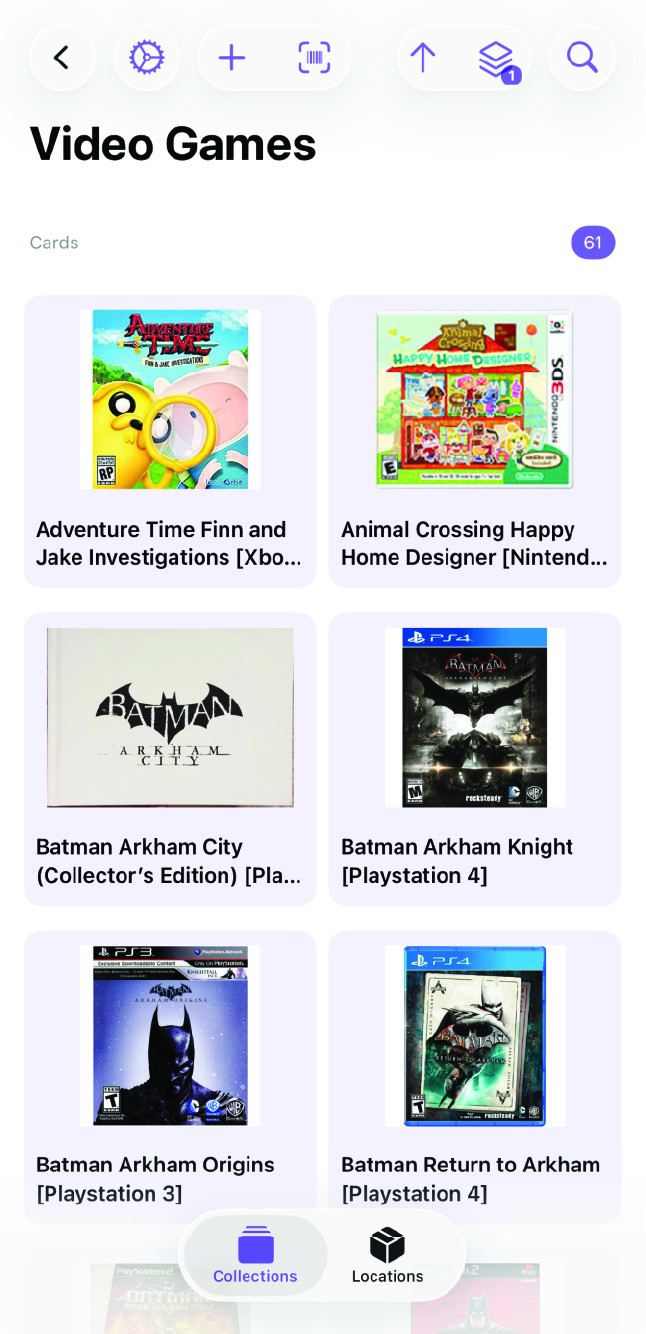
The Thumbnail Property is set to product_image. This means the box art or product photo is what appears in thumbnail and grid views when browsing the collection. Since most games have recognizable cover art, this makes visual browsing fast and intuitive.
Item List Stacks
Three stacks are configured for this collection:
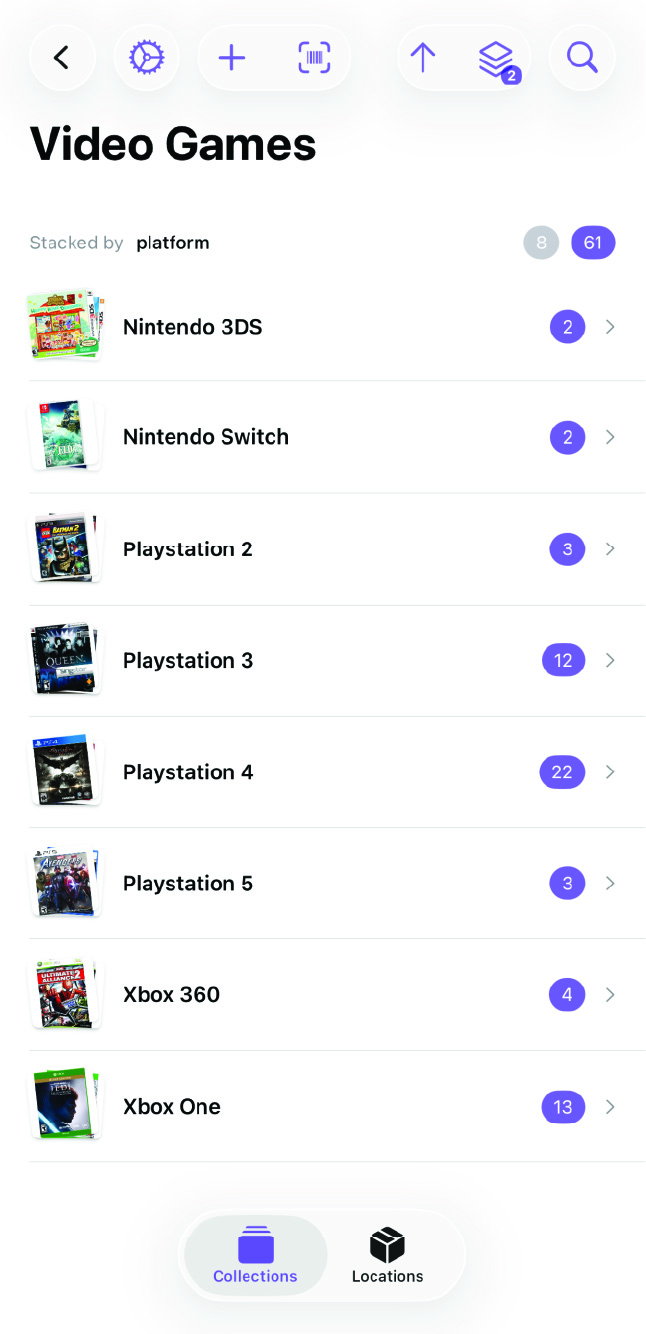
- Stack 1: platform — Group games by console. See all your Switch games together, all your PS5 games, etc.
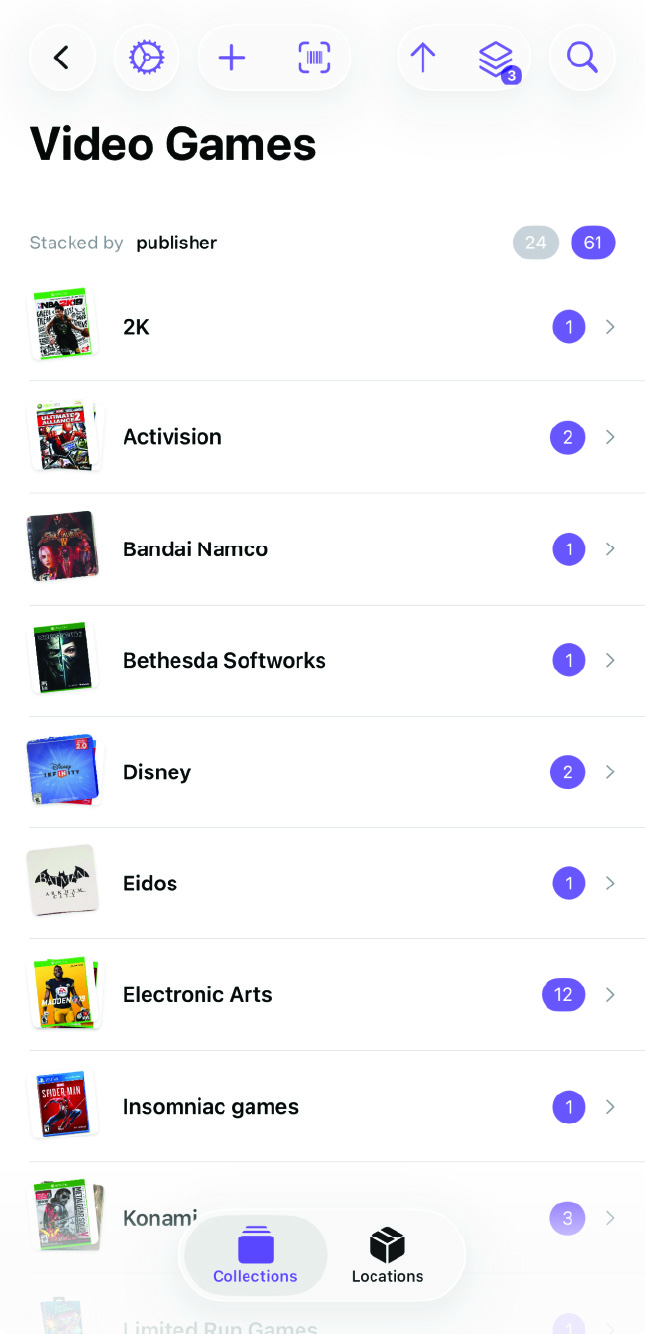
- Stack 2: publisher — Group by publisher. See everything from Nintendo, Sony, or any other publisher in one view.
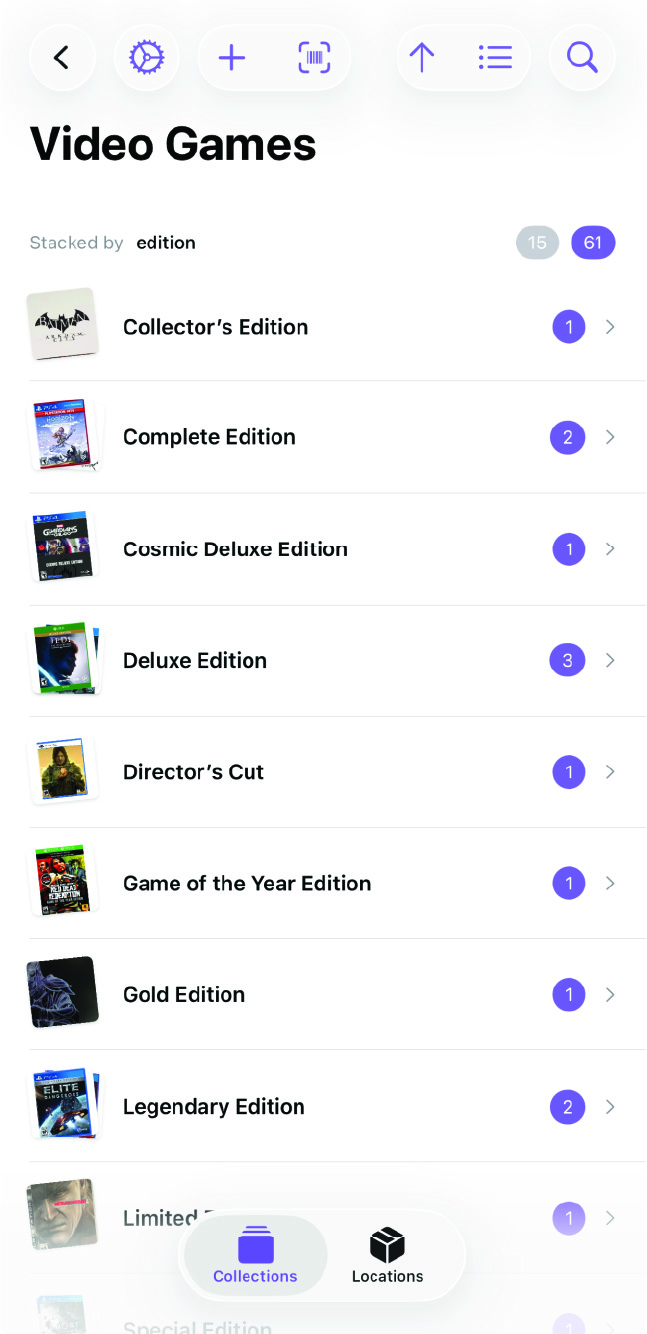
- Stack 3: edition — Group by edition type. See which games are standard editions vs. collector’s or special editions.
You can cycle through these stack views at any time. Each one gives a different perspective on the same collection without changing any data.
Item Title Template
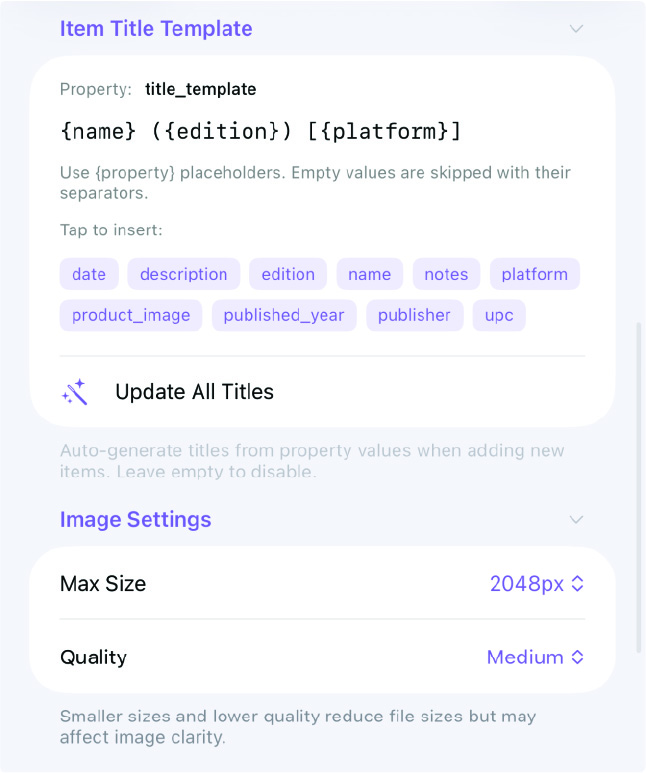
The title template is set to:
{name} ({edition}) [{platform}]
This auto-generates consistent file names from the property values. For example:
- “The Legend of Zelda (Collector’s Edition) [Nintendo Switch]”
- “Final Fantasy VII (Standard) [PS5]”
- “Halo Infinite (Standard) [Xbox Series X]”
Empty values are skipped along with their separators, so a game with no edition value would simply be “Halo Infinite [Xbox Series X]”.
The available property placeholders are shown as tappable chips below the template field — tap any property name to insert it. And if you update the template later, the Update All Titles button regenerates titles for all existing items.
Image Settings
Image settings control the size and quality of photos captured within the collection:
- Max Size: 2048px
- Quality: Medium
This is a good balance for product images and box art — large enough to see details clearly, but compressed enough to keep your collection folder size reasonable if you’re cataloging hundreds of games.
Item Search Options
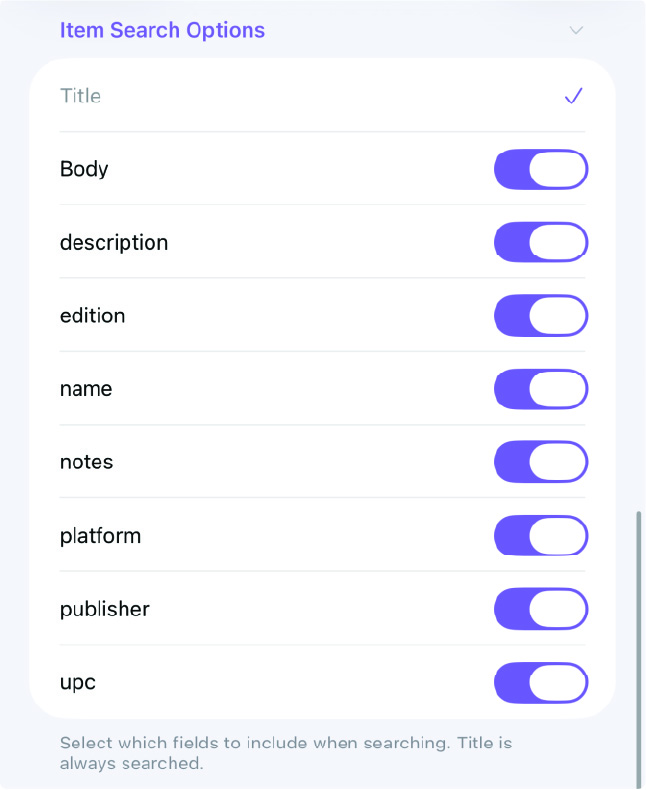
Search is configured to include almost every property:
- Title — always searched (can’t be disabled)
- Body — search the Markdown body content
- description — the product description text
- edition — find games by edition type
- name — the game name
- notes — your personal notes
- platform — search by console
- publisher — search by publisher
- upc — search by barcode number
With all of these enabled, searching “Nintendo” finds games published by Nintendo, games on Nintendo platforms, and any game where “Nintendo” appears in the description or notes. The broader the search scope, the more likely you are to find what you’re looking for on the first try.
Product Item Type and UPC Mappings
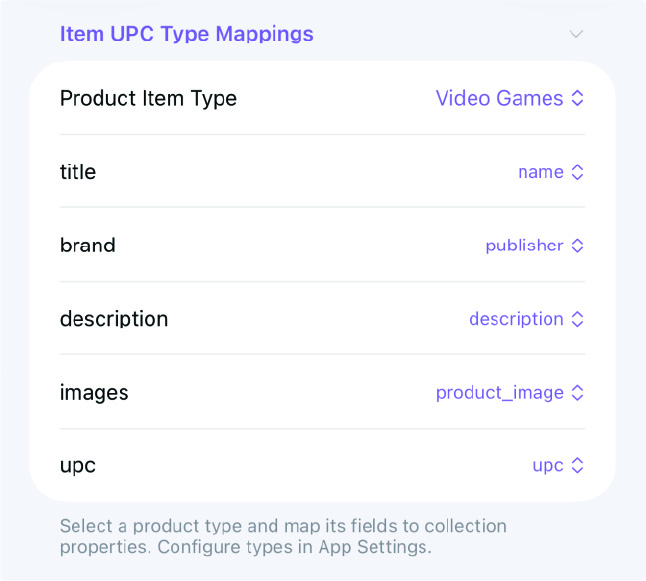
This is what makes barcode scanning work for video games specifically. The Item UPC Type Mappings section connects the product API fields to your collection’s properties.
The Video Games Product Item Type
First, a Product Item Type file defines which fields the API should return for video games (download product item type file then unzip the downloaded file):
---
title: ""
brand: ""
description: ""
images: ""
upc: ""
---
This is a simple Markdown file with YAML frontmatter listing the relevant API fields. For video games, we care about the title, brand (which maps to publisher), description, images, and UPC code.
The Collection Mappings
In Collection Settings, under Item UPC Type Mappings, the Product Item Type is set to Video Games and the fields are mapped:
| API Field | Collection Property |
|---|---|
| title | name |
| brand | publisher |
| description | description |
| images | product_image |
| upc | upc |
With these mappings in place, scanning a game’s barcode automatically fills in the name, publisher, description, product image, and UPC code. You just review the data, add any details the API doesn’t cover (like edition and platform), and save.
The Result
With all of this configured, the day-to-day workflow for adding games is fast:
- Scan the barcode on the game case.
- Review the auto-filled data — name, publisher, description, and product image are already populated.
- Fill in the remaining fields — platform, edition, notes, and any other details.
- Save — the item is added with a consistent title like “Game Name (Edition) [Platform]” and the box art shows up as the thumbnail.
When browsing, switch between stacks to see your collection grouped by platform, publisher, or edition. Search across any field to find a specific game instantly. And because everything is stored as Markdown files, your entire collection is portable and accessible in Obsidian or any text editor.